Kumizine

Affinity Publisher zines

Make an Affinity Publisher zine without doing the imposition math by hand

Affinity Publisher is excellent for designing pages, but it does not remove the headache of working out booklet page order, spreads, signatures, and print setup for a folded zine.

Kumizine fills that gap. If you are wondering how to arrange zine pages, why booklet pages keep ending up in the wrong order, or how to print a folded zine double sided without some pages coming out upside down, this is the part Kumizine solves. You choose the size, binding style, and page count, then download a print-ready `.idml` template you can open in Affinity Publisher and populate with your finished artwork.

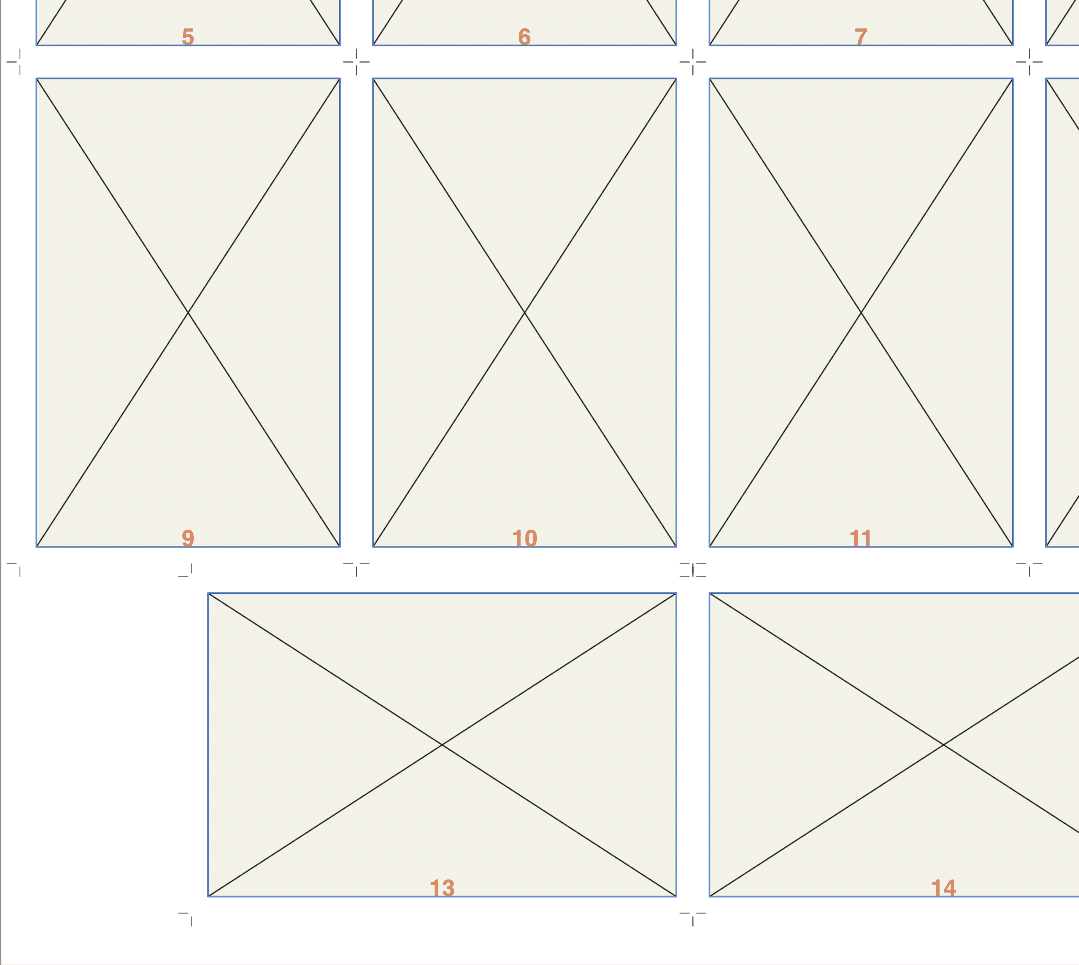
A generated Affinity Publisher-compatible layout showing imposed frames ready for artwork placement.

Why Affinity Publisher zines get confusing

The page you design first is rarely the page that prints first. Once a zine is folded into a booklet, page order has to be rearranged into printer spreads.

That means you have to think about imposition, outer and inner spreads, sheet count, and whether a signature-based binding changes how the pages group together.

Kumizine keeps Affinity Publisher focused on design while it handles the production logic: page order, imposition, signatures, and the fold-and-bind plan.

How to make a zine in Affinity Publisher with Kumizine

This workflow keeps the technical setup separate from the page design, so you can design confidently without second-guessing the final print order or manually reshuffling booklet pages.

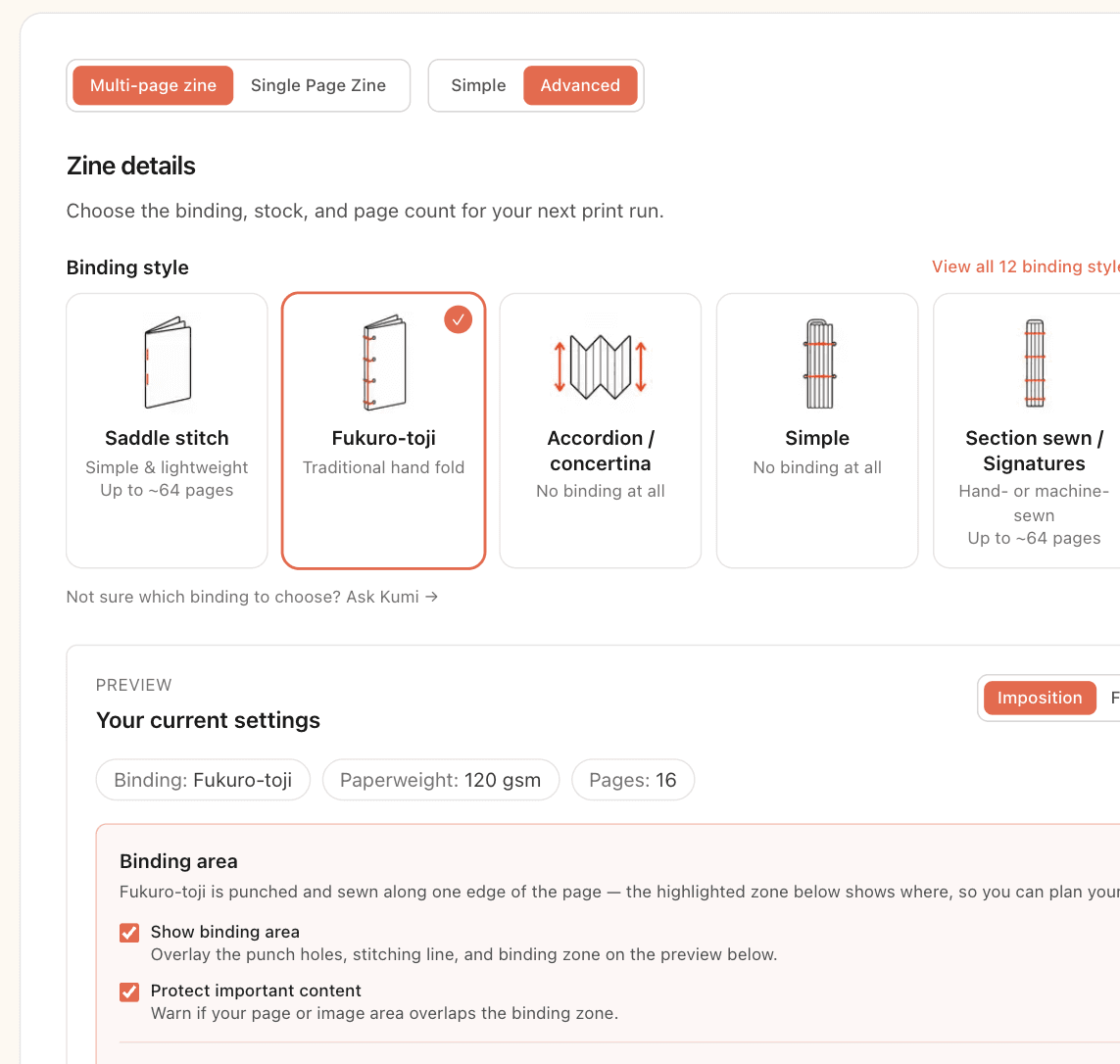
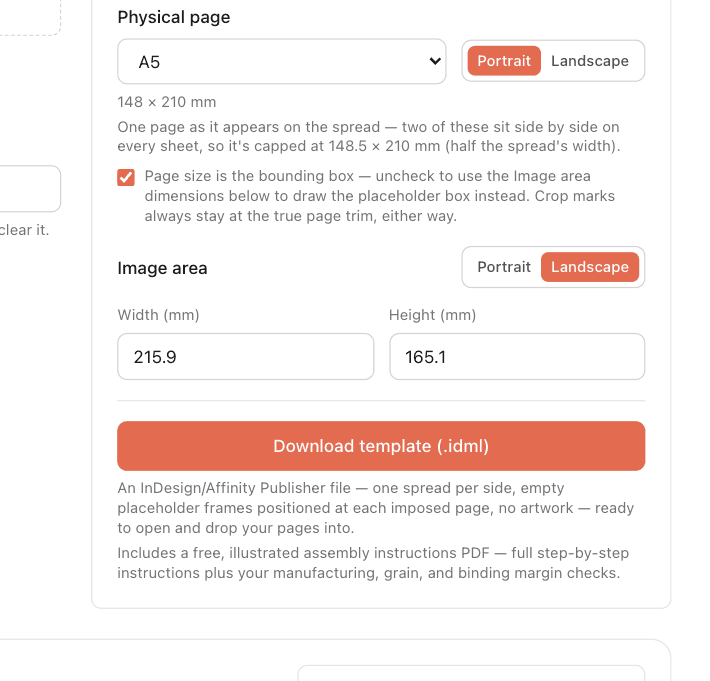
  1. The Kumizine Zine Studio screen showing binding, page count, size, and imposition controls.

    Step 1

    Choose the zine format in Kumizine

    Set the page count, finished size, binding style, and paper assumptions. Kumizine calculates the imposition and page order for the format you want to print.

  2. A generated Affinity Publisher-compatible layout showing imposed frames ready for artwork placement.

    Step 2

    Generate the template

    Download the `.idml` template with the imposed page frames already positioned. This gives you a real layout file instead of a flat proof.

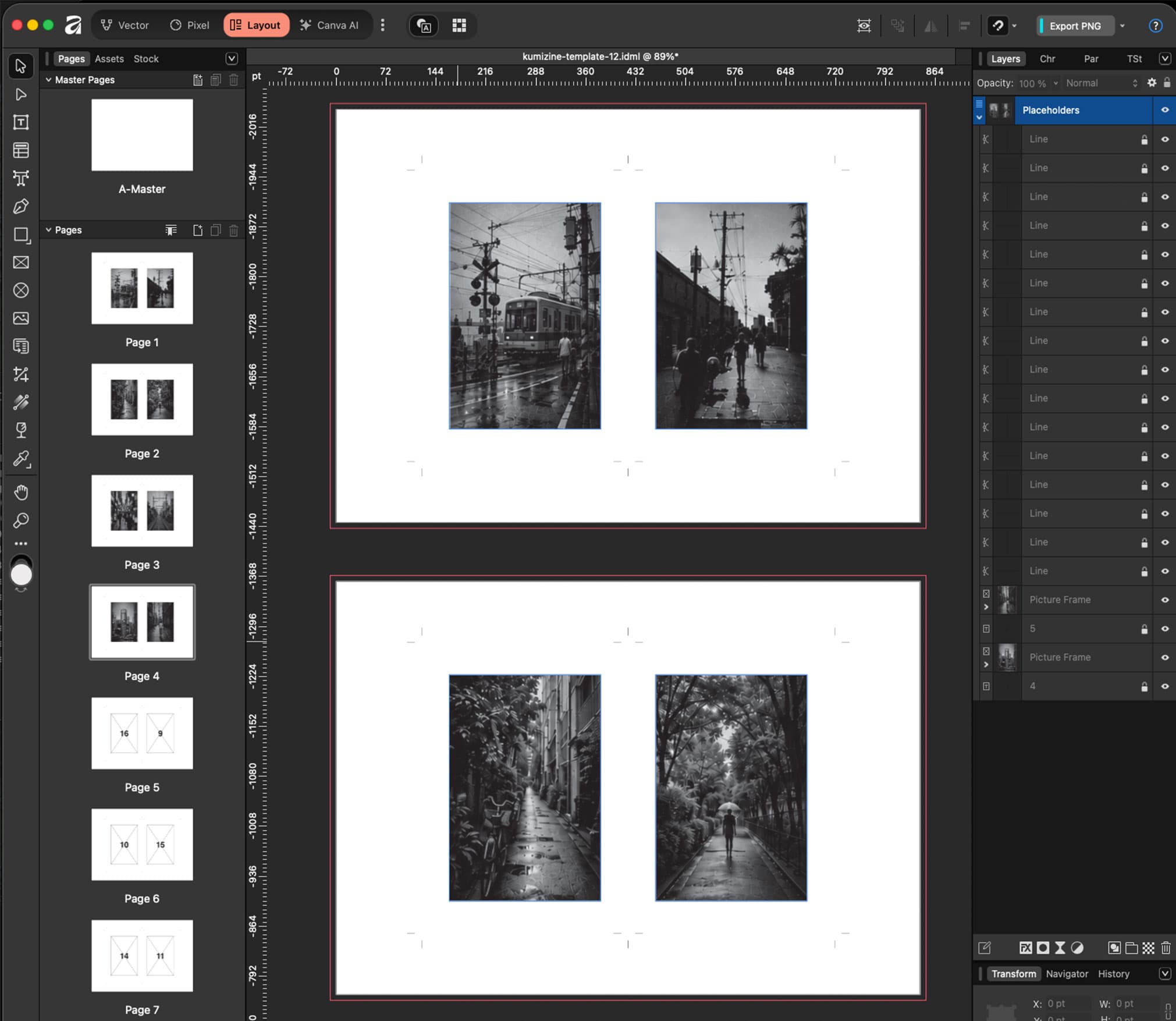
  3. An imposed zine layout opened for editing in Affinity Publisher.

    Step 3

    Open the template in Affinity Publisher

    Place your finished pages into the prepared frames. You stay in the design tool you already know, but the print order has already been solved.

  4. The Kumizine setup view showing a live imposed preview for a multi-page zine.

    Step 4

    Check spreads, signatures, and trim marks

    Before printing, confirm the imposed spreads, trim marks, and any signature grouping match the binding method you chose.

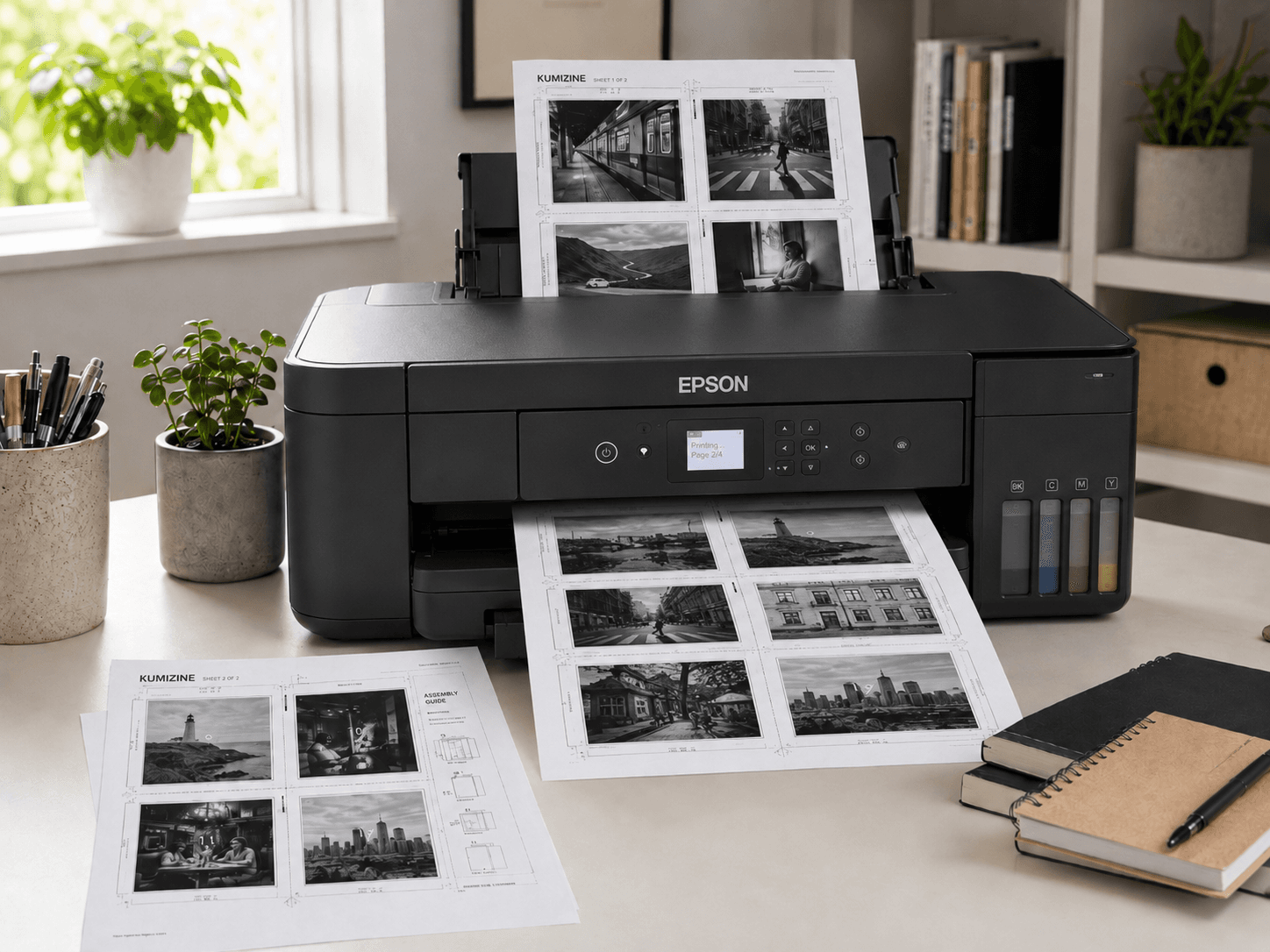
  5. A printed booklet workflow showing the physical transition from layout to printed zine sheets.

    Step 5

    Print the zine

    Export from Affinity Publisher, print the imposed sheets, and follow the print orientation and duplex setup needed for the chosen booklet format.

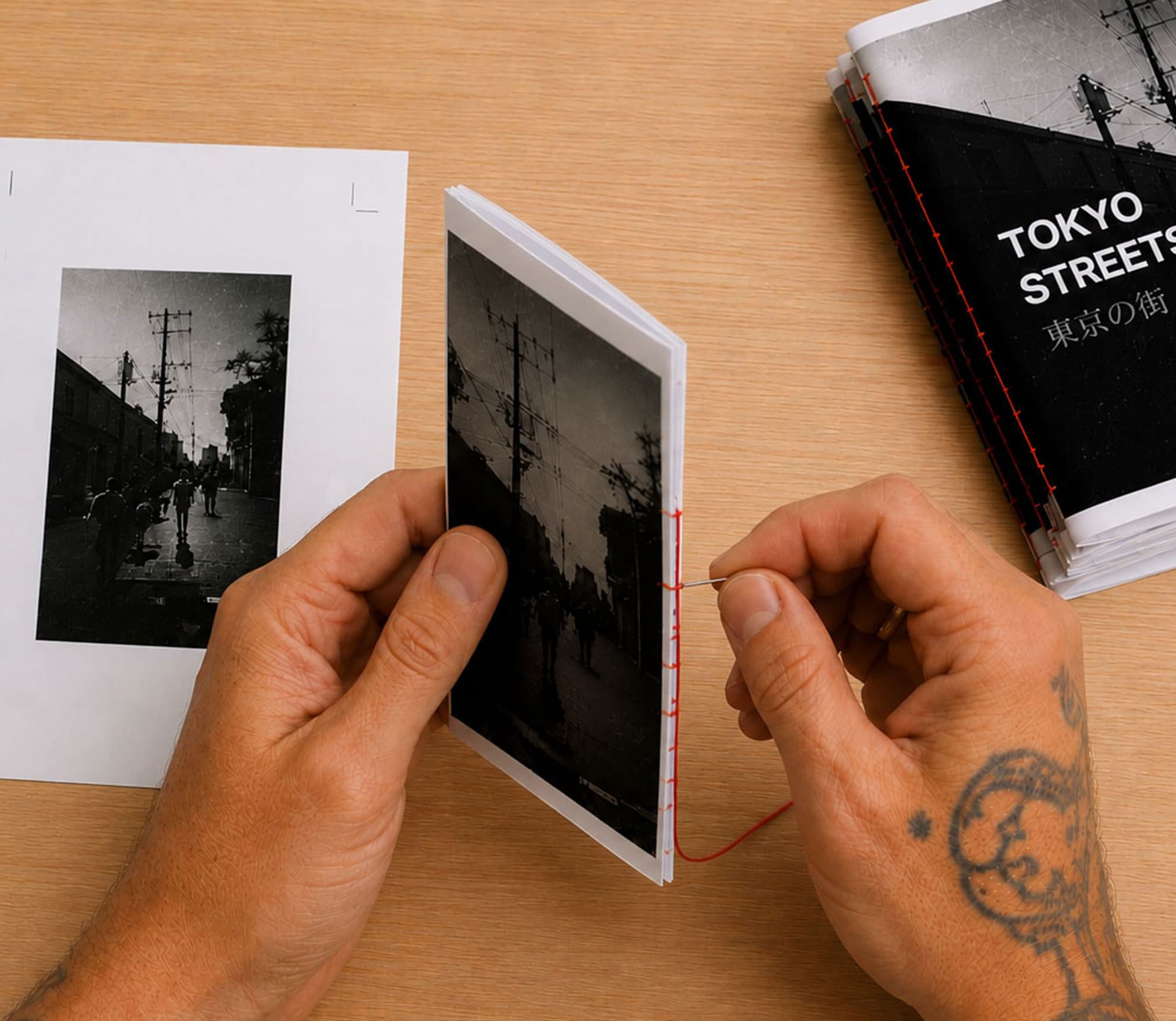
  6. Hands assembling a finished printed zine after the pages have been imposed and printed.

    Step 6

    Fold, bind, and assemble

    Use the included assembly guidance to fold and bind the zine correctly, whether you are making a simple booklet or a signature-based project.

Common questions

Can Affinity Publisher make a booklet by itself?

Affinity Publisher is strong for page design, but zine production still depends on correct imposition, printer spreads, and page order. Kumizine handles that production setup and gives you a template to finish in Affinity Publisher.

Do I need to understand imposition first?

No. It helps to know that imposition means rearranging pages into printer spreads, but the point of Kumizine is that you do not have to calculate that by hand for every booklet.

Why do my zine pages print in the wrong order or upside down?

That usually means the booklet page order or duplex print orientation has not been matched to the way the zine folds. Kumizine calculates the imposition first, then gives you a template and assembly guidance so the printed sheets line up with the final folded booklet.

Can I use the same workflow for InDesign too?

Yes. Kumizine generates `.idml` templates that can be opened in both Affinity Publisher and InDesign, so the production logic stays the same even if your design tool changes.

Start with a free template or build a custom zine

If you want to see the workflow before starting a custom project, use the free A4 templates. If you already know the size and binding you need, jump straight into the builder.